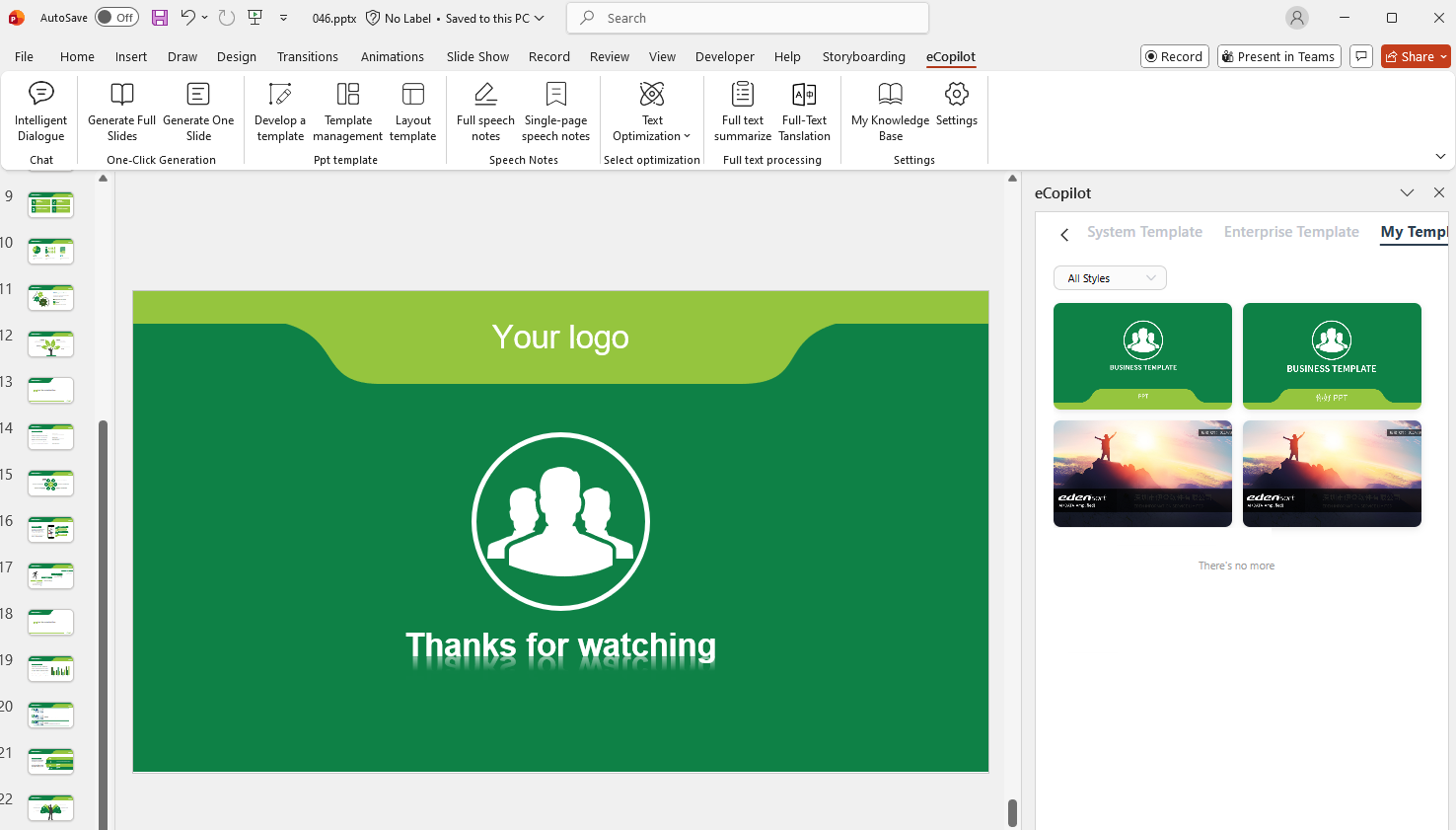
Upload PPT Template
Open the PPT file in PowerPoint. In eCopilot, click Develop Template, as shown in Figure 1.30.

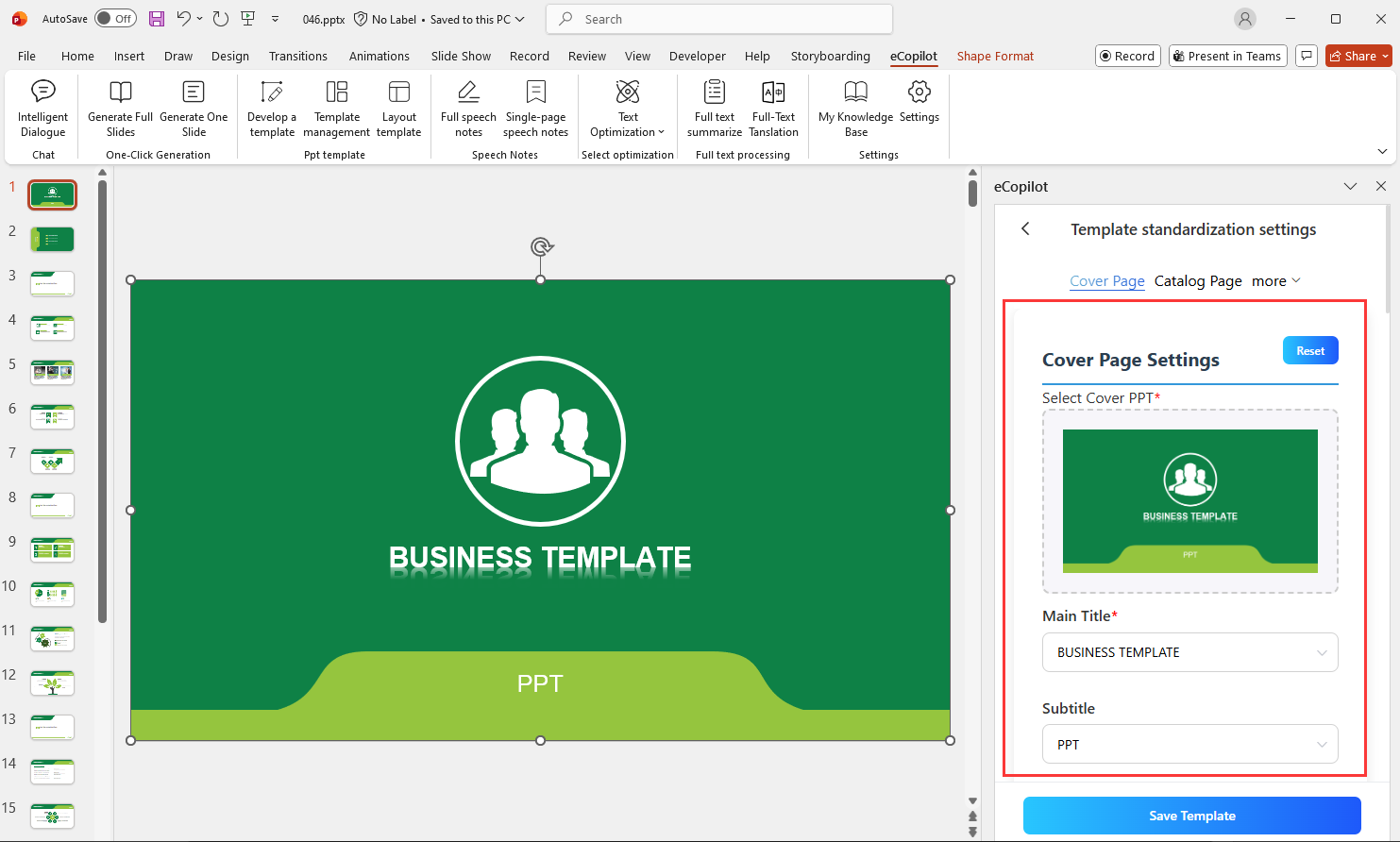
Select the cover slide in the presentation, then choose corresponding tags in the right eCopilot panel, as shown in Figure 1.31.
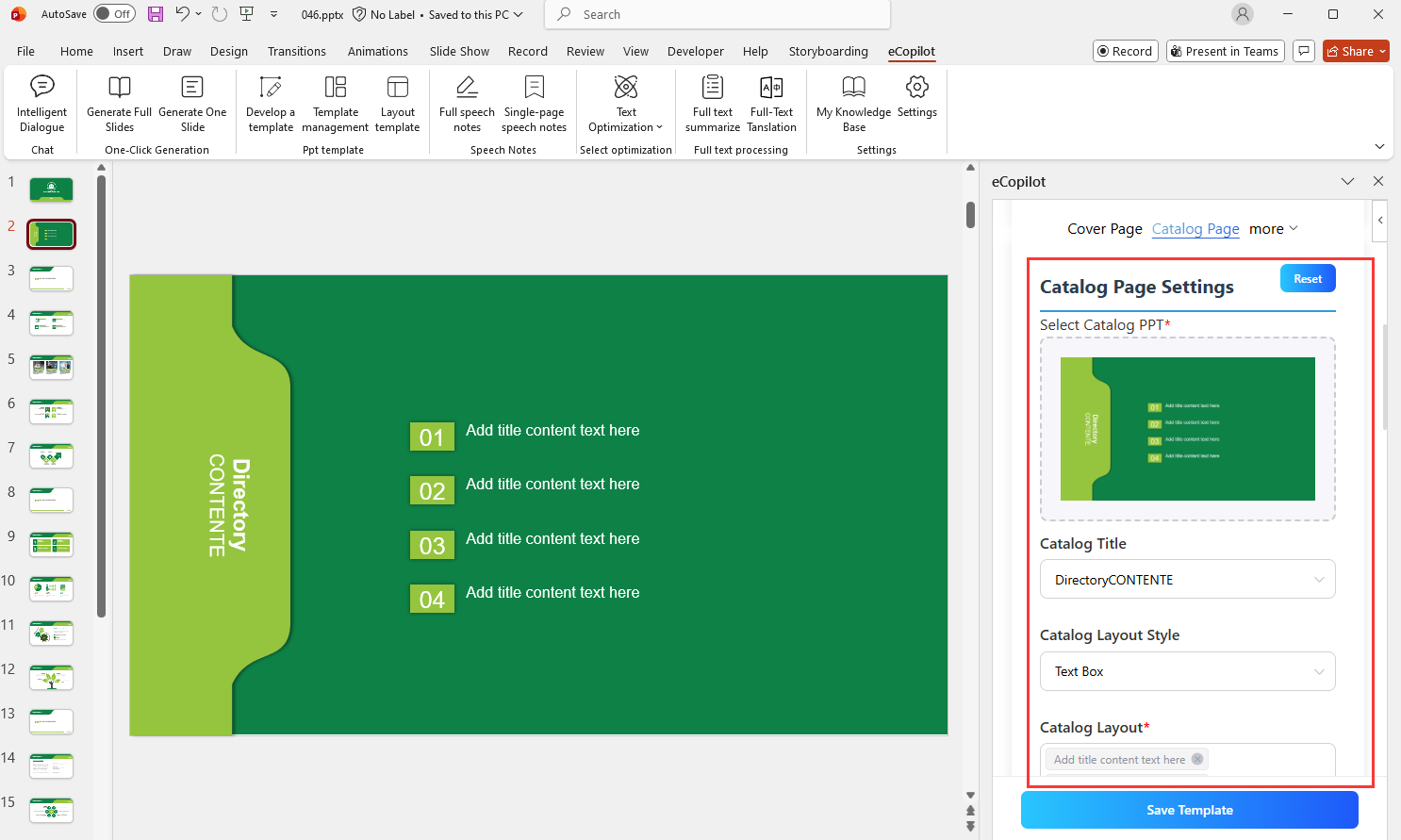
Select the table-of-contents slide, then choose corresponding tags in the right eCopilot panel. You can select multiple TOC layout items, as shown in Figure 1.32.
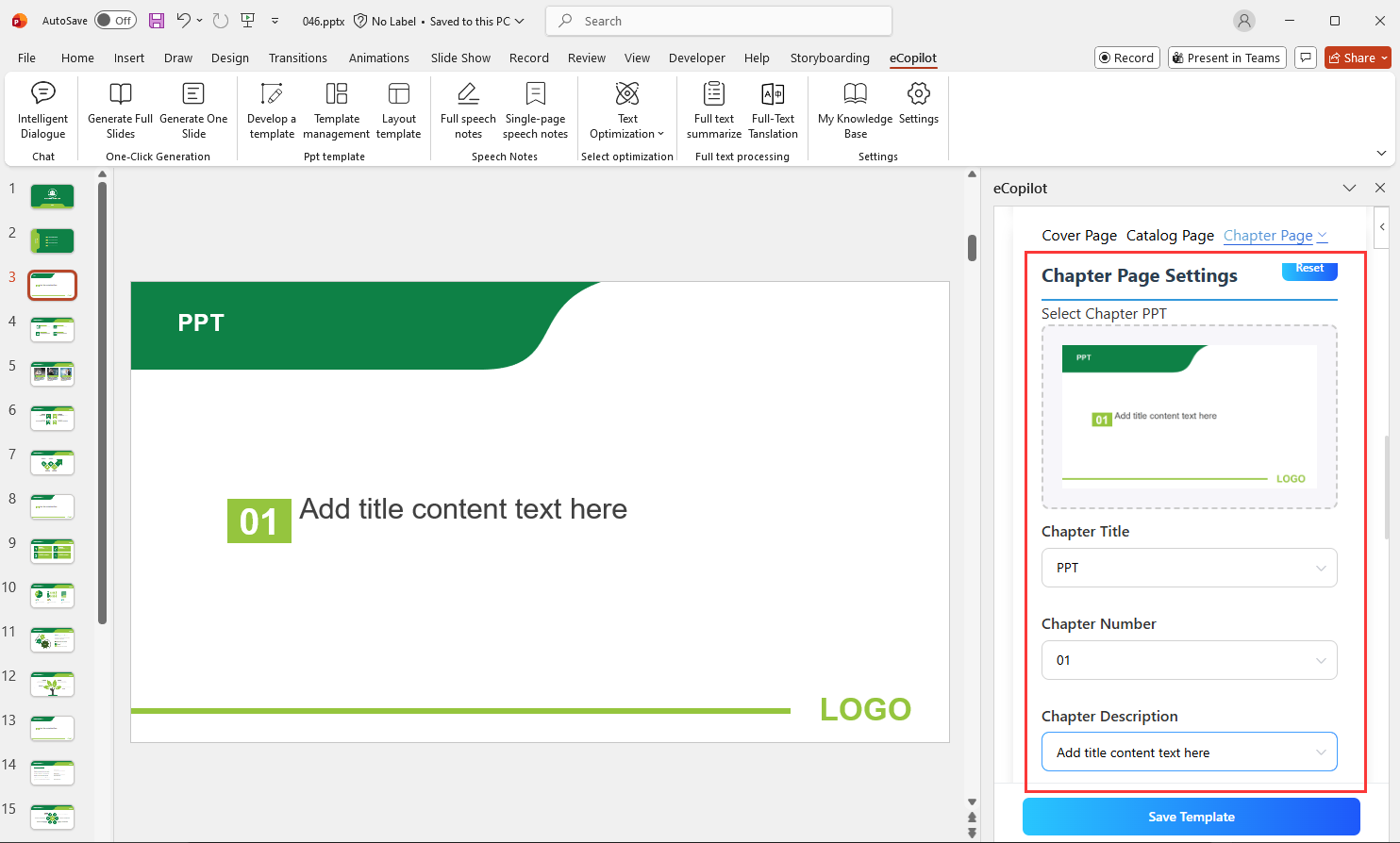
Select a chapter slide, then choose corresponding tags in the right eCopilot panel, as shown in Figure 1.33.
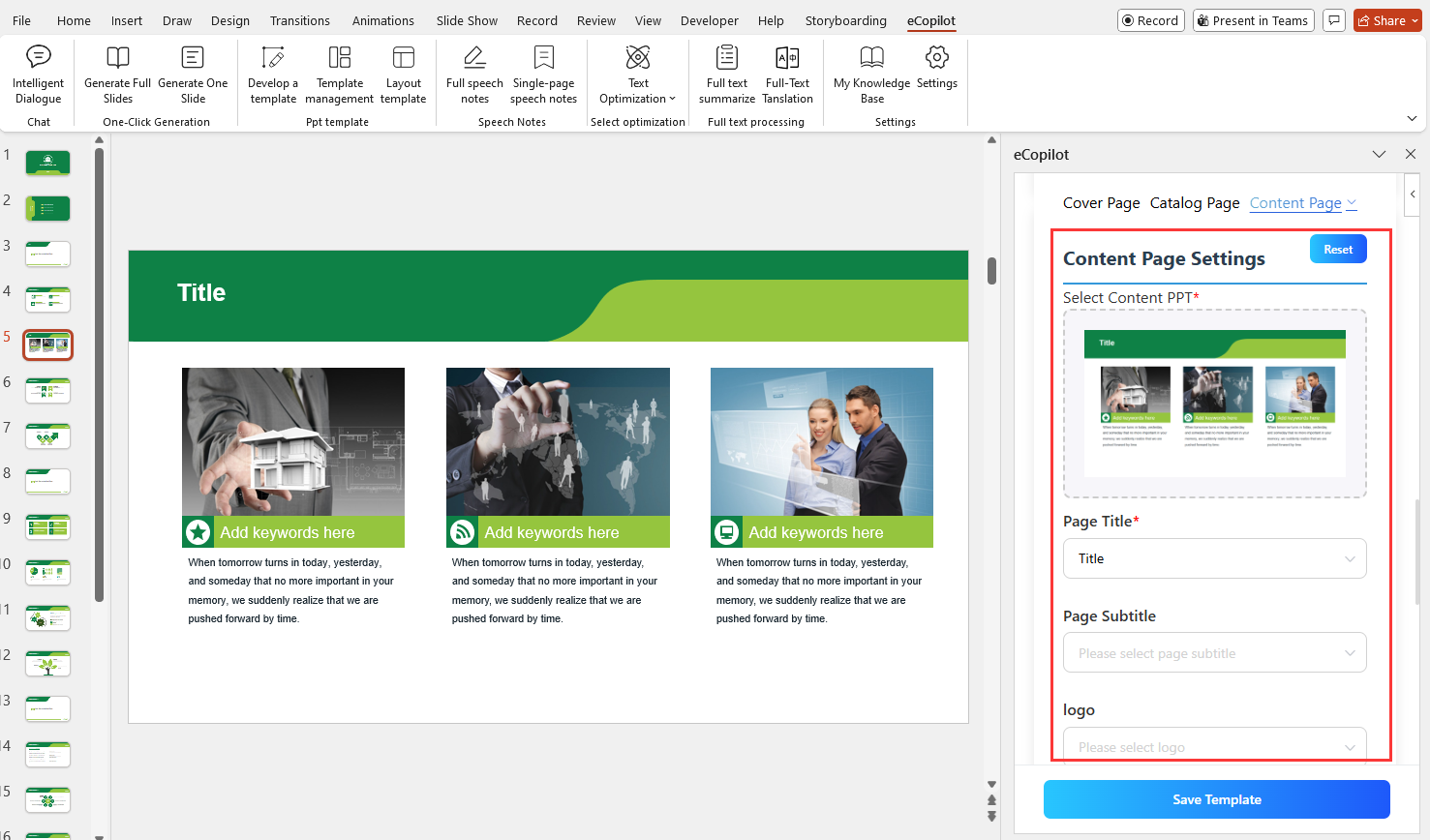
Select a content slide, then choose corresponding tags in the right eCopilot panel, as shown in Figure 1.34.
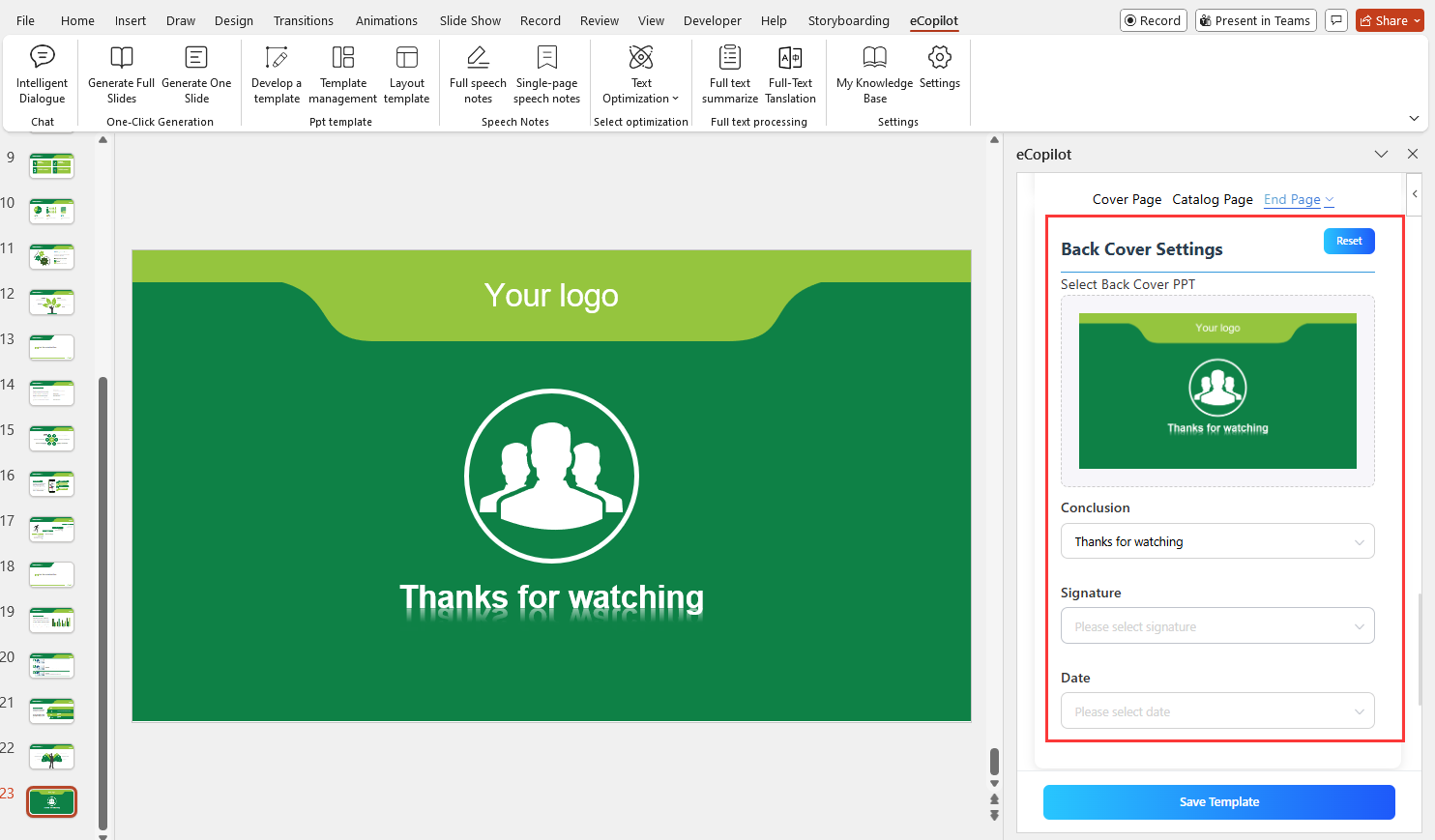
Select the end slide, then choose corresponding tags in the right eCopilot panel, as shown in Figure 1.35.
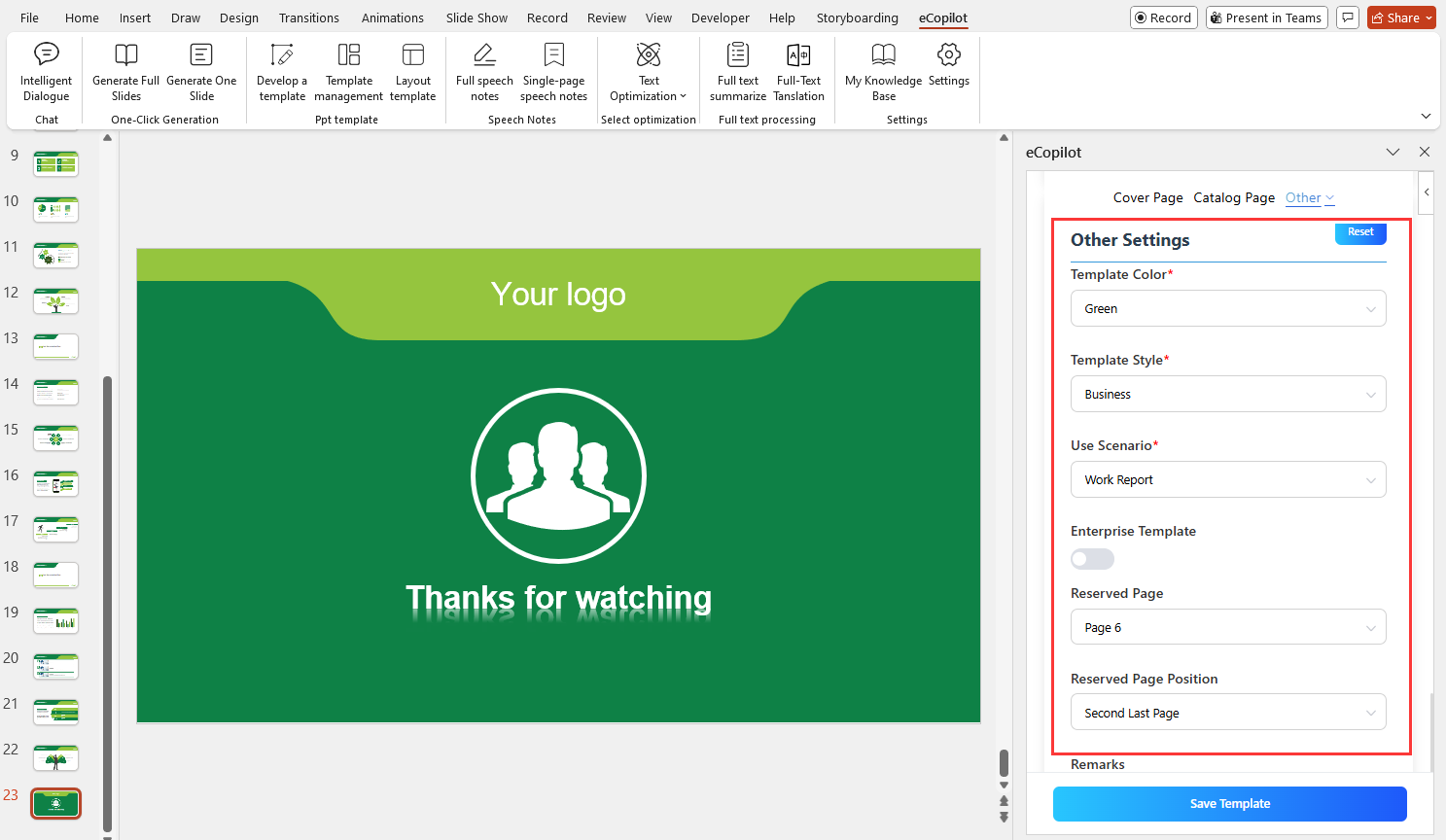
Configure other template options in the right eCopilot panel: template colors, styles, usage scenarios, whether it's an enterprise template (only administrators can set). If you need to keep pages unchanged, set which page to keep and where to display it, as shown in Figure 1.36.
Finally, click Save. Saved templates can be viewed under Template Management, as shown in Figure 1.37.