Generate Full Presentation
Click Generate Full Slides to go to the creation page, as shown in Figure 1.2.
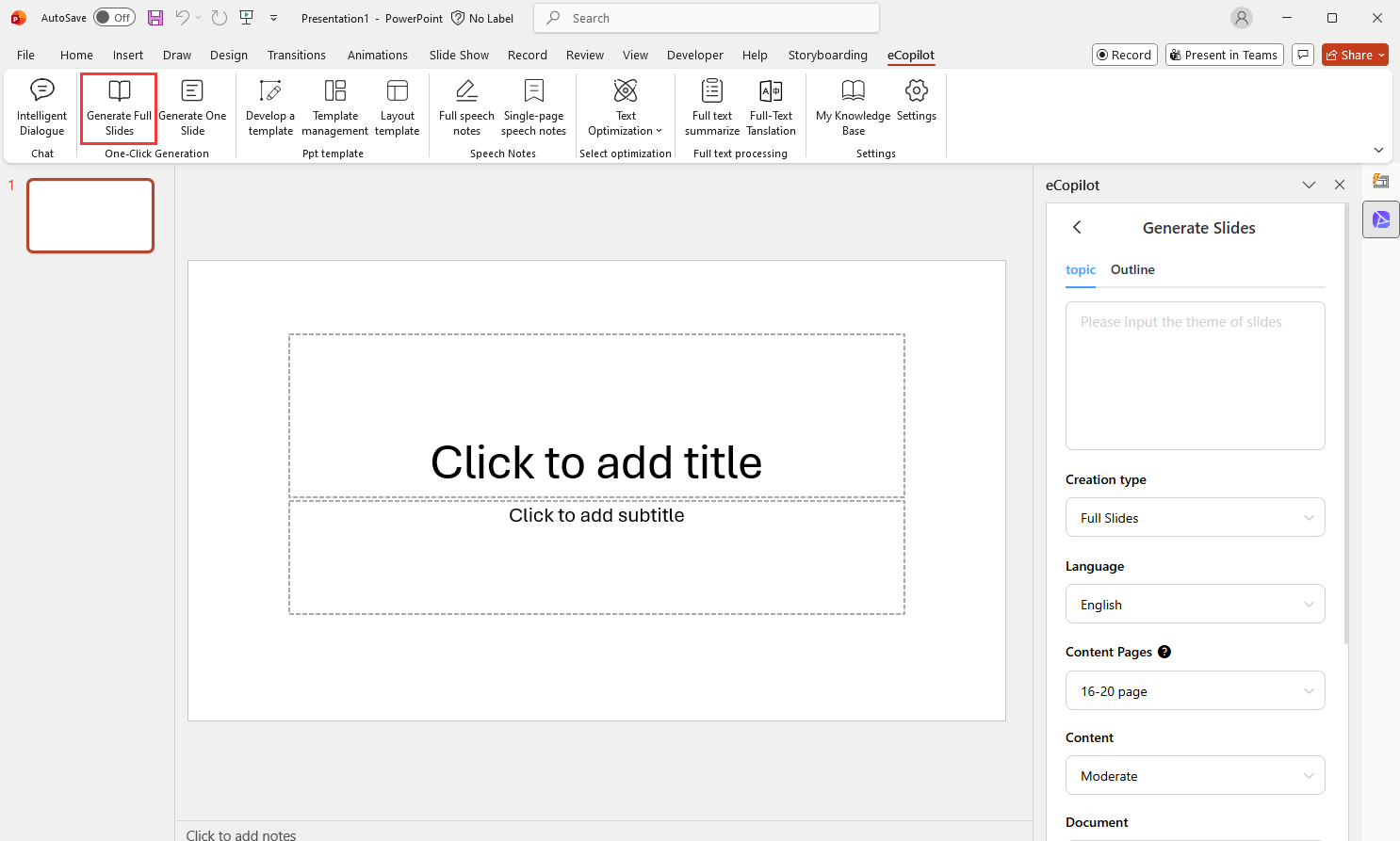
On the generation page, you can switch modes: Theme (enter a theme to generate slides) or Outline (enter an outline to generate slides).
- Theme Mode: Enter the presentation theme and requirements, e.g., "Sales Performance Report for December 2025"
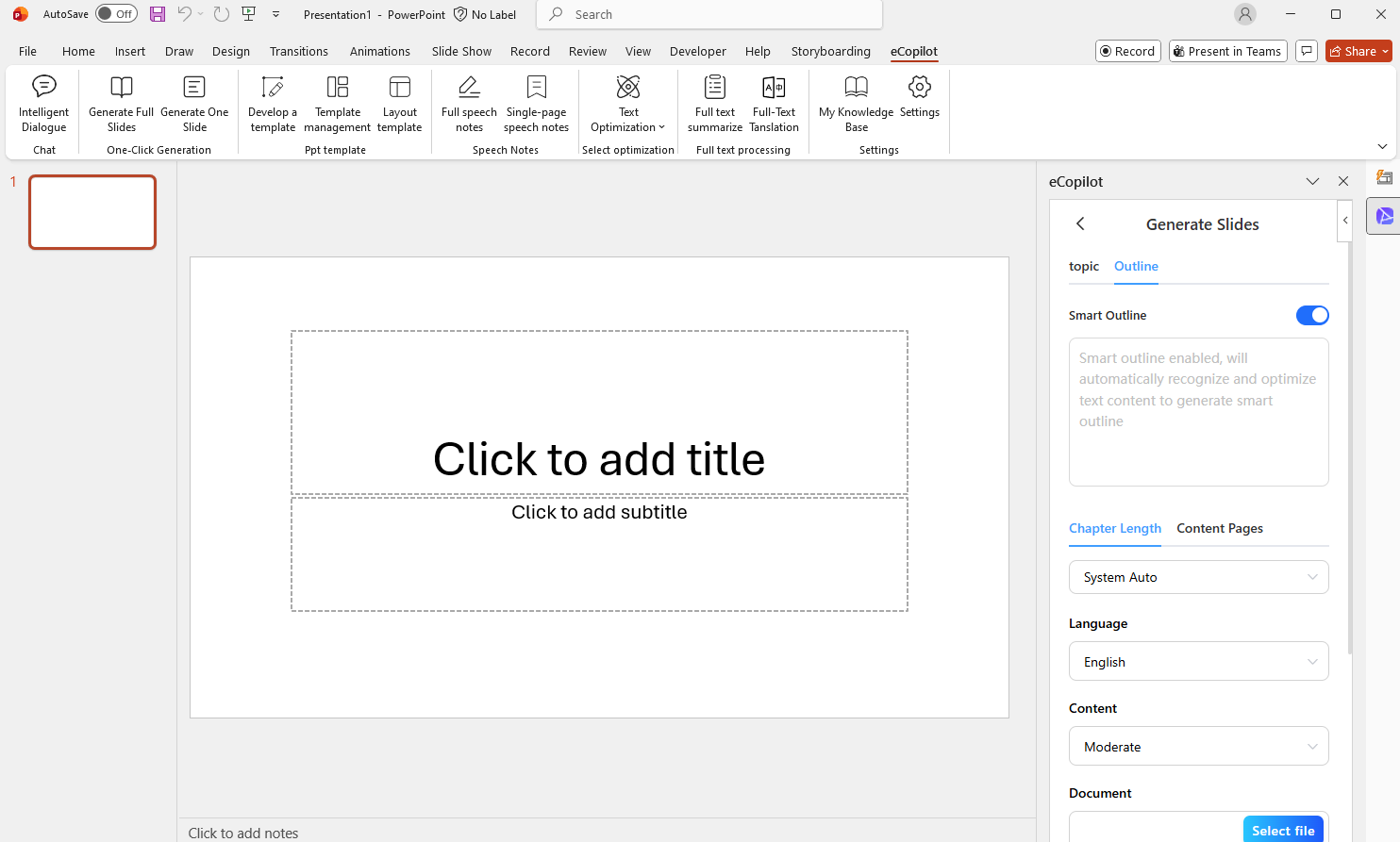
- Outline Mode: You can toggle
Smart Outline. When off, the user-provided outline is used directly. ClickView Examplesto reference the outline format. When on, the outline is optimized intelligently, and you can customize the number of chapters, number of content slides, language requirements, etc.
- Documents: If you need to generate PPT based on document content, you can upload documents here.
- Reference Knowledge Base Files: Select files stored in
My Knowledge Baseif needed.
After filling in information, click Start Generatiion and wait for AI to produce the outline. You can then add, delete, modify, or optimize titles and content. Click content to run AI optimization, as shown in Figure 1.4.
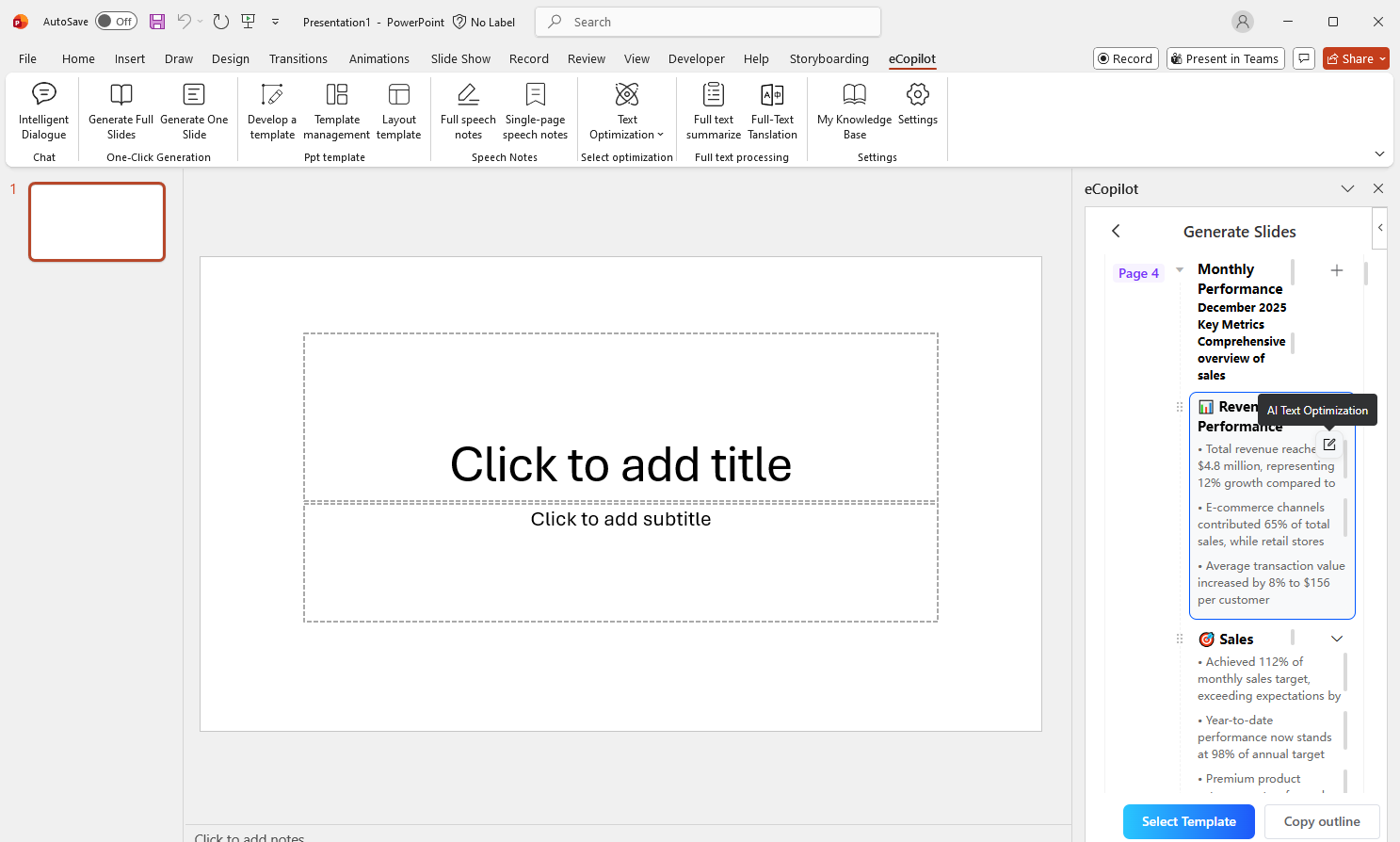
After adjustments, click Select Template to view System Templates, Enterprise Templates, and My Templates. Select one, as shown in Figure 1.5.
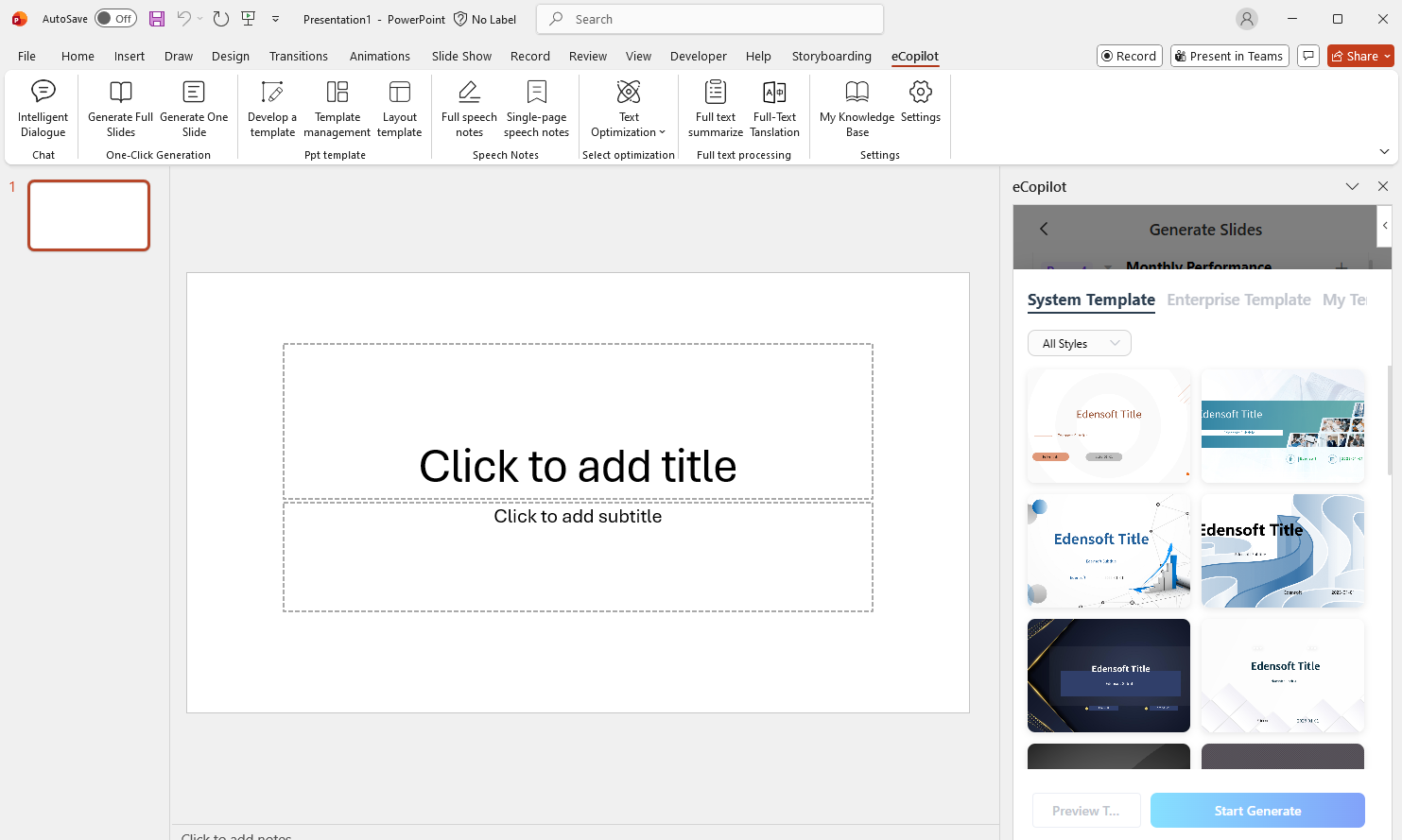
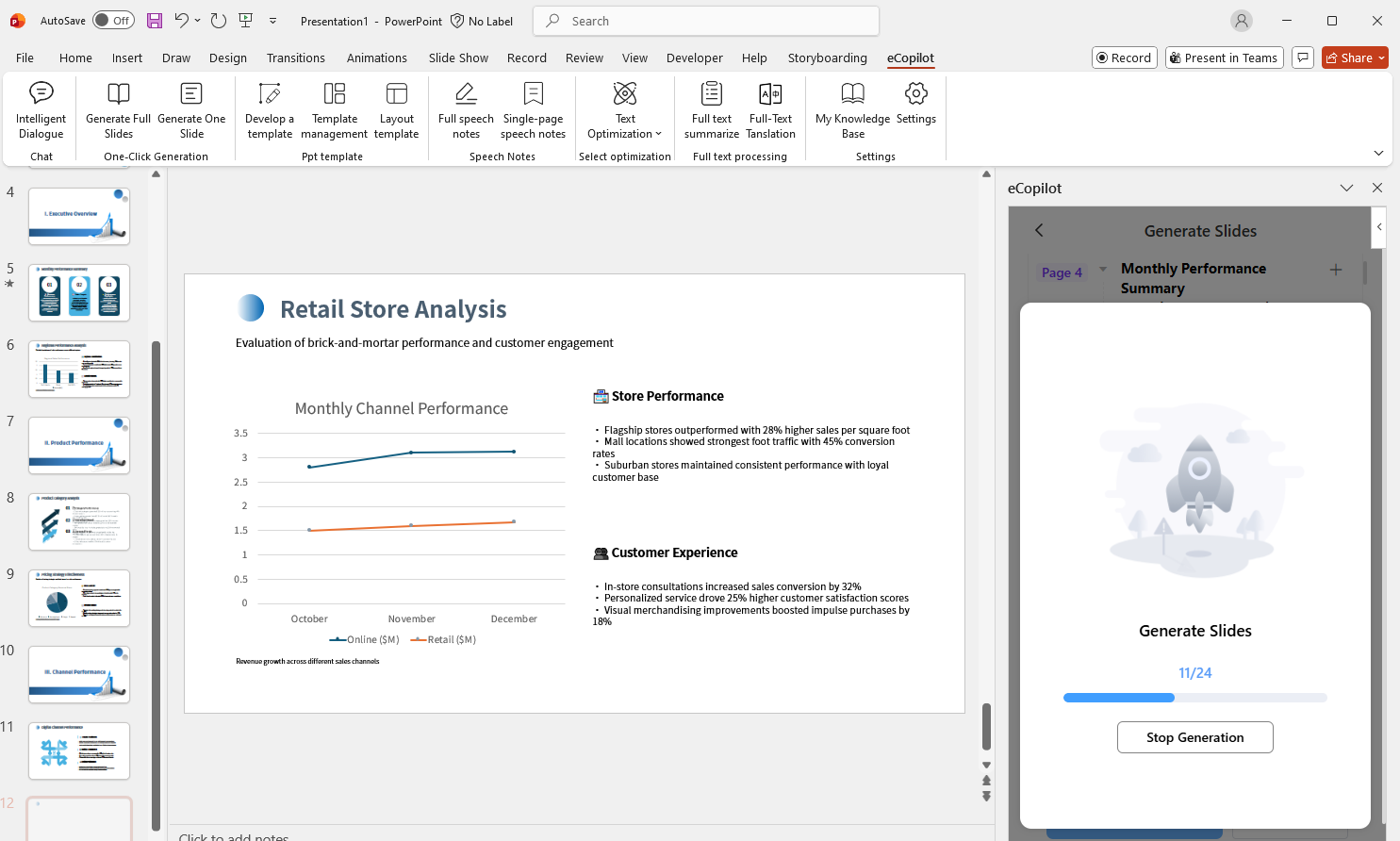
Click Generate to automatically create slides, as shown in Figure 1.6.